My Quilts App is an app to help you keep all your quilt projects in one convenient place! Journal and organize all your sewing projects!
I’ve tried various ways to keep track of and organize all my quilting and sewing projects through the years. But no one method has ever really stuck or I’ve never found a method that I have stuck with.
Until now…
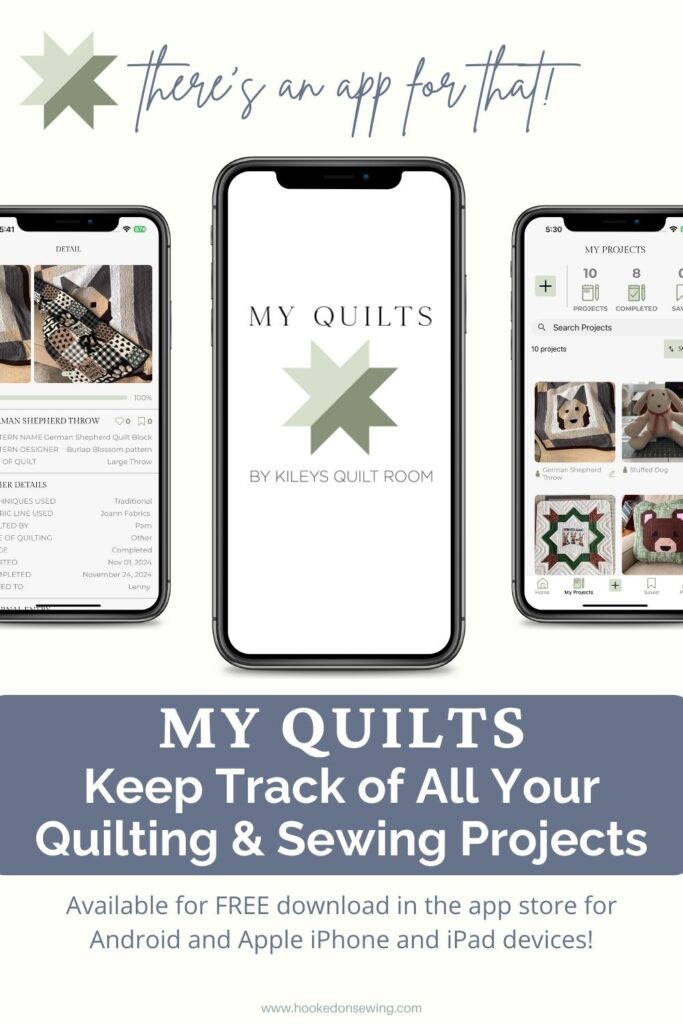
My Quilts App
Although I have tried to be more intentional about keeping track of all the projects I’m working on and what I’ve made for whom, I find it a struggle. Several months ago now, I discovered My Quilts.
What is the My Quilts app?
My Quilts is an application (also called “an app”) for your smart device, like your phone or tablet. The app provides a user-friendly way for you to keep track of your quilting AND sewing projects.
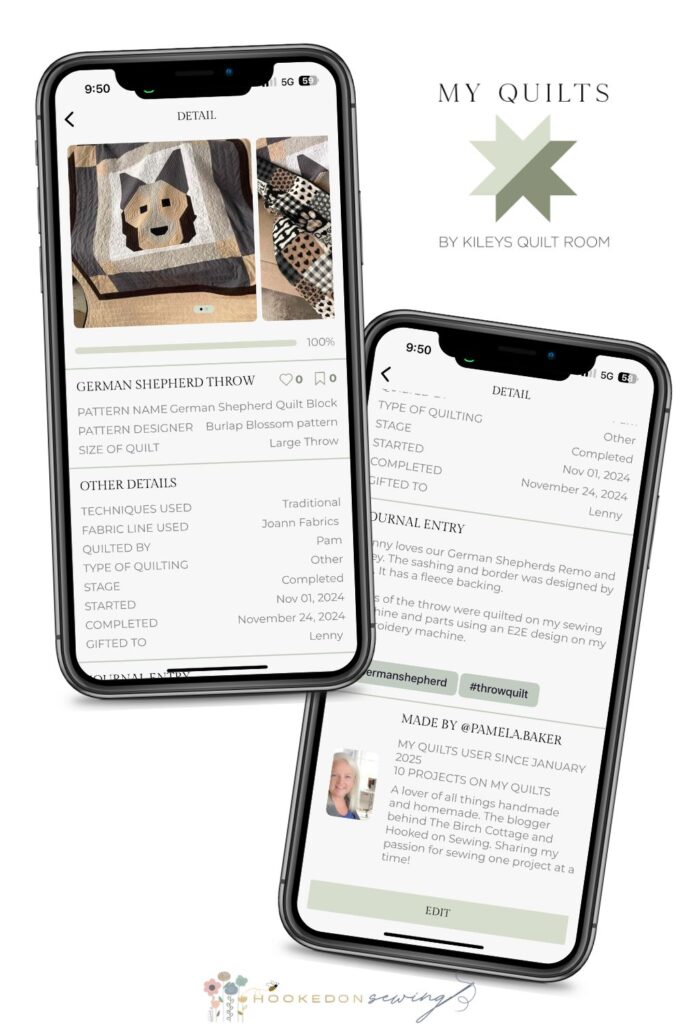
You can keep track of all your projects, including incomplete projects, or waitlisted projects! And Add as much or as little information about each project as you want – including photos!
Is the My Quilts App ONLY for Keeping Track of Quilting Projects?
It is not! Although My Quilts was obviously (take its name for example) created for quilters by a quilter. It also can be used to keep track of sewing projects, embroidery projects, and so much more!
Can I Keep Track of My Project Progress with My Quilts?
Yes! Currently there are a number of built-in stages of your project for you to choose from. You can mark the stage of each project, including:
- Started
- Fabric Chosen & Acquired
- Pieces Cut
- Blocks Made
- Rows Assembled
- Quilt Top Done
- Backing Ready
- Binding Made
- Quilted
- Quilt Bound
- Completed
Can I See Other Users Projects?
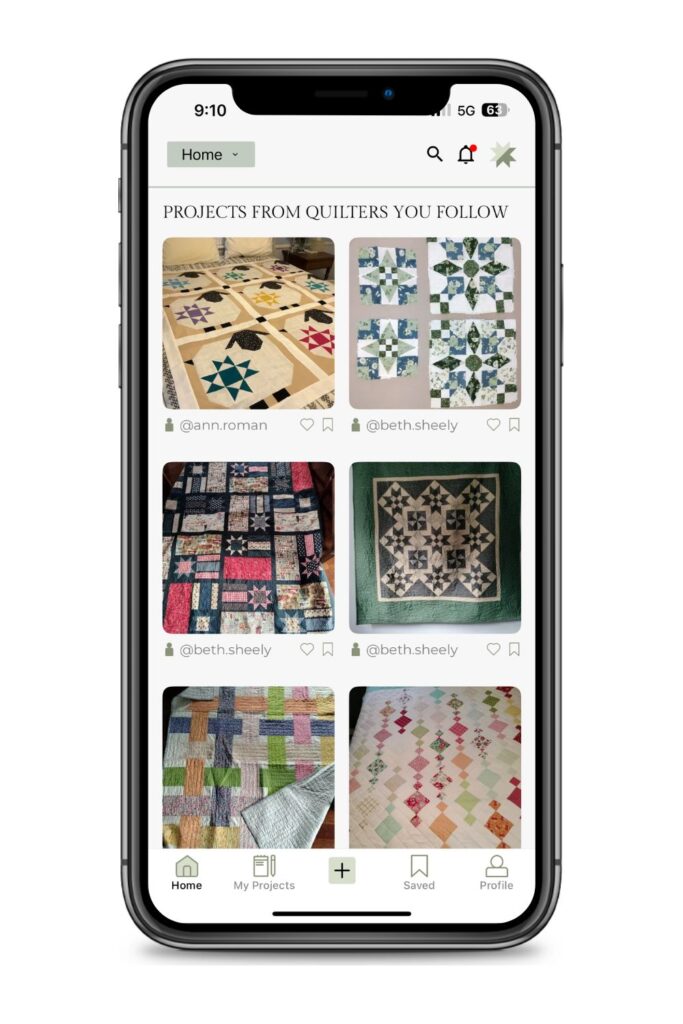
Another resounding YES! You can search for, find and even save other projects you like and follow other users.
Can I Follow You?
Yes, you can follow me. Here’s how.
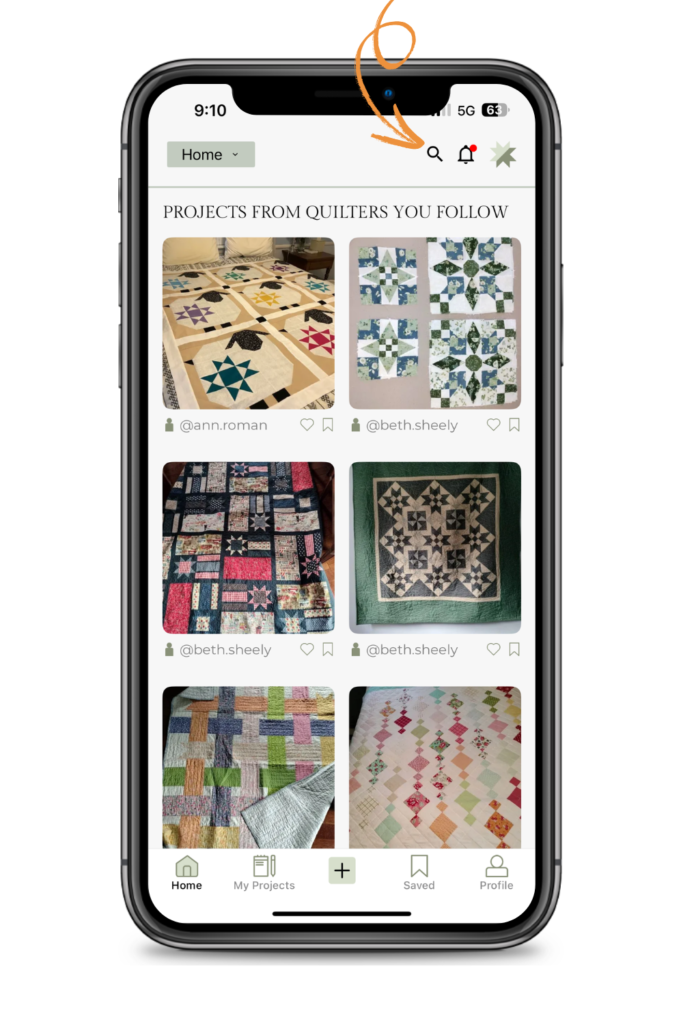
- Once you have the app installed on your phone or tablet and setup your account. From the Home page, tap on the Search icon on the top right corner of the app.
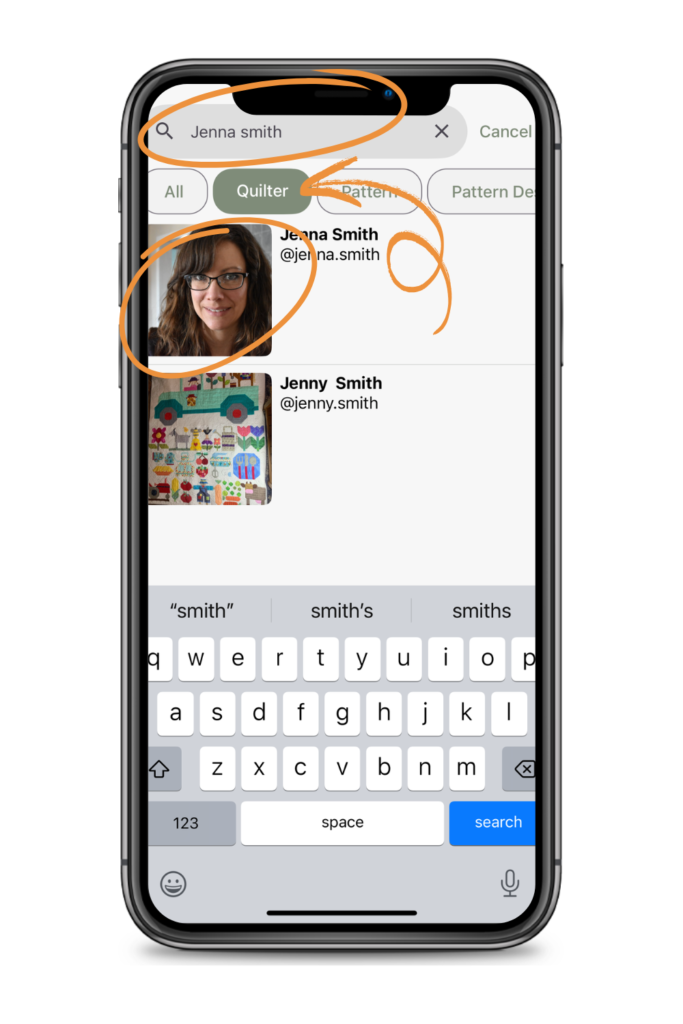
- Then type in my name Pamela Baker in the search field. And select the Quilter button under the Search field.
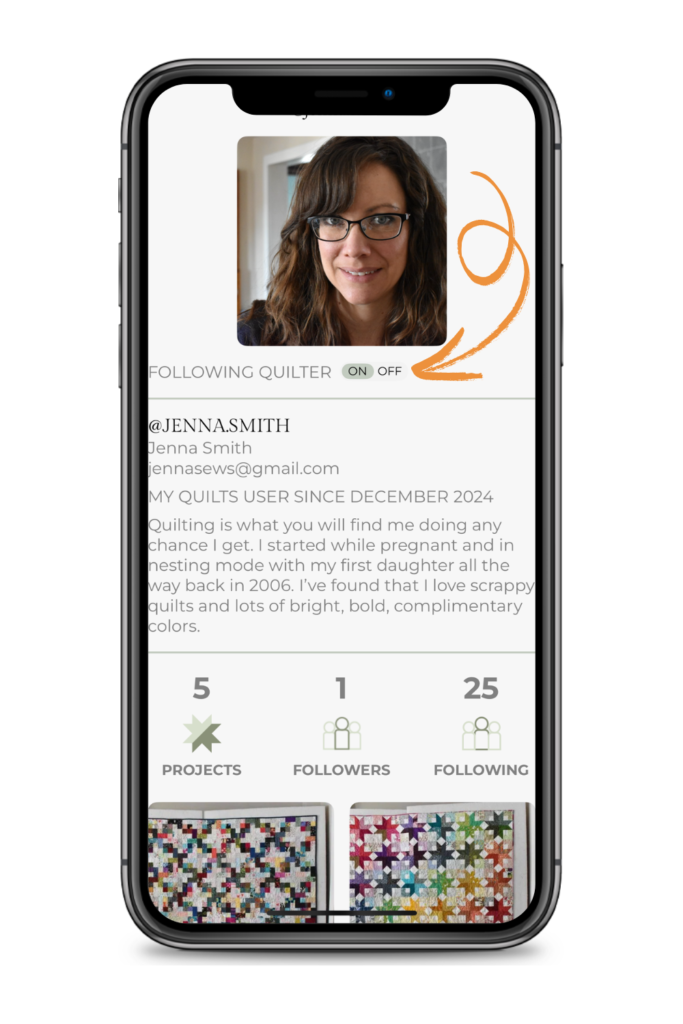
- Tap on the profile picture. And the profile page will show.
- Under the profile picture, you’ll see FOLLOWING QUILTER with an ON/OFF toggle. Tap on the ON text to turn on following. (Likewise, tap on the OFF text to turn off following.)
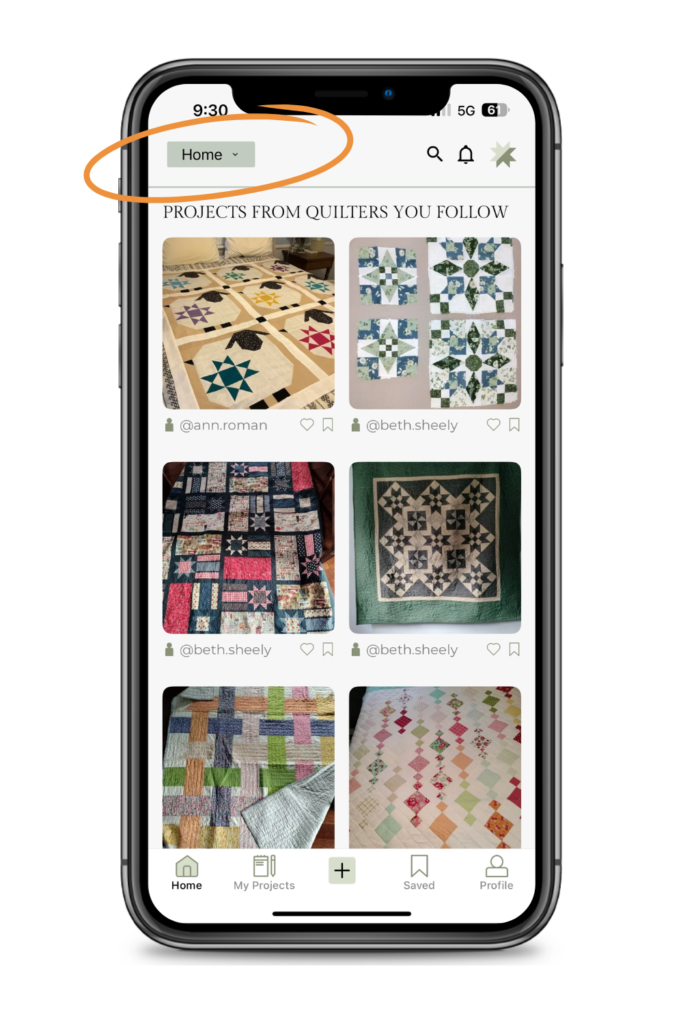
Once you follow someone, their saved projects will show up in your home feed. I can’t follow myself, so in the below images I am searching for Jenna Smith and will follow her.
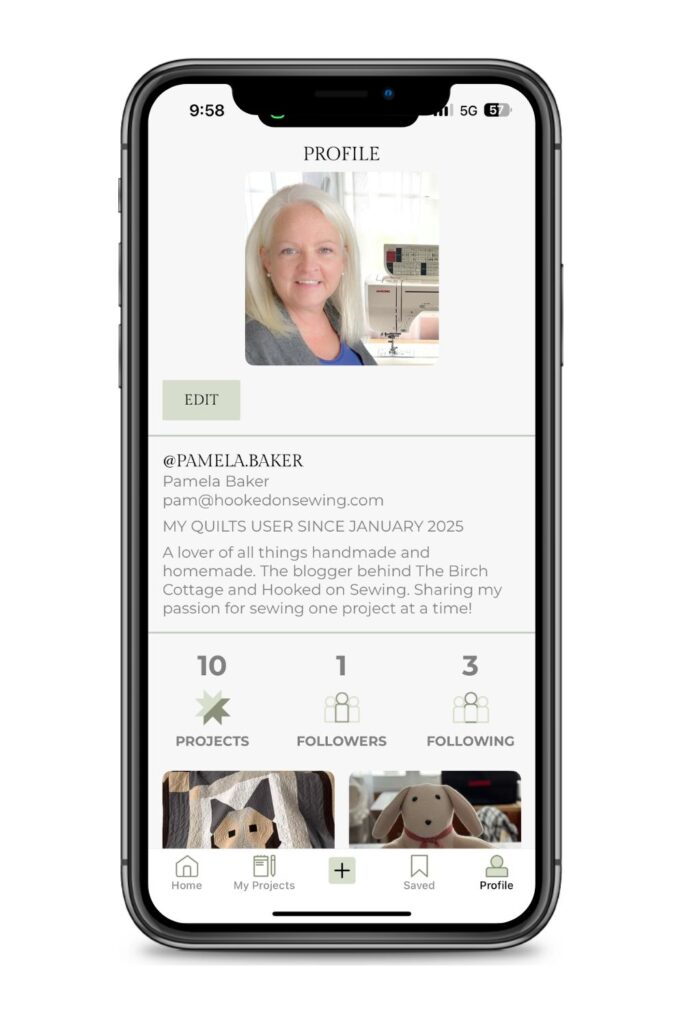
Here’s a look at my profile account in the My Quilts app:
Where Can I Find More Information on the My Quilts App?
To learn more about the My Quilts App, just click on the below LEARN MORE button!
From there, you’ll find more information about the app and find links to YouTube video tutorials on how to use the app.
You’ll also find links to download the app. Just remember, you have to download the app to your phone or tablet. There isn’t currently a version available for your laptop or computer.
Summary
I’ve been using the My Quilts app from Kiley’s Quilt Room since January 2025. It is an app you can download to your phone or tablet. Once downloaded, you simply create your profile/account and then you can start adding projects.
You can also use the app to search for other users to follow or simply to gain inspiration. Find a project you like, simply tap to save it.
I love all the details that I can store with each project and the bonus of being able to upload images. Kiley is constantly adding updates and improvements to the app!
I really enjoy using the My Quilts app to store and organize all my quilting and sewing projects. I highly recommend it!
And did I mention the app is FREE? Yep, totally free!


Leave a Reply